Dashboard
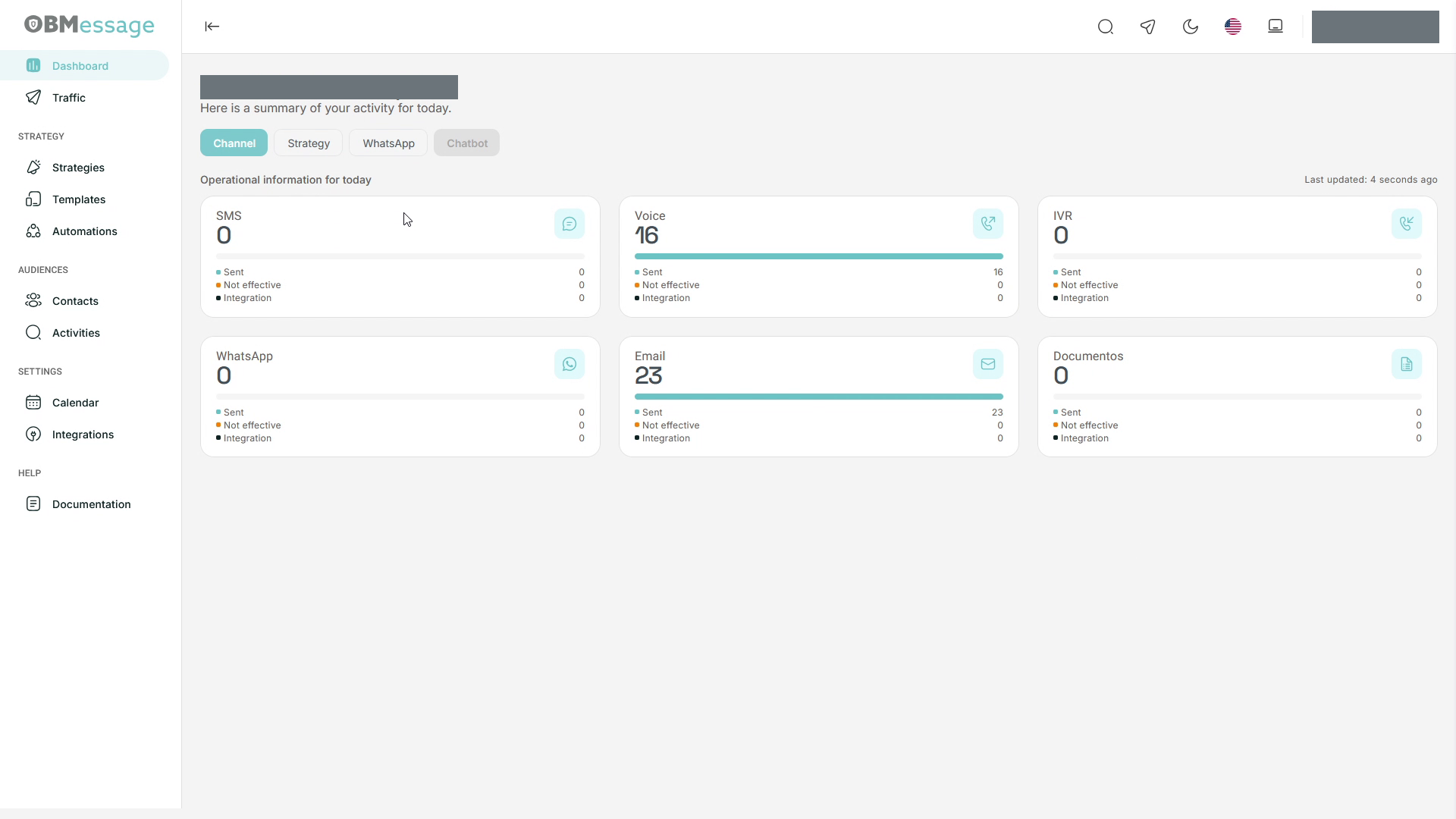
Open Dashboard in Omnify's sidebar to view the day's activity summary. The screen contains Channel, Strategy, WhatsApp, and Chatbot tabs.
Review daily activity
- Open Dashboard and select Channel.
- Check the last-update indicator.
- Find the channel you want to review and compare its total and indicators.
- For individual records or a specific date range, open Activities.
Channels
Channel displays cards for SMS, Voice, IVR, WhatsApp, Email, and Documentos (Documents; this card retains its Spanish label). Each card contains a total and indicators labeled Sent, Not effective, and Integration. The last update is shown above the cards.
Strategy
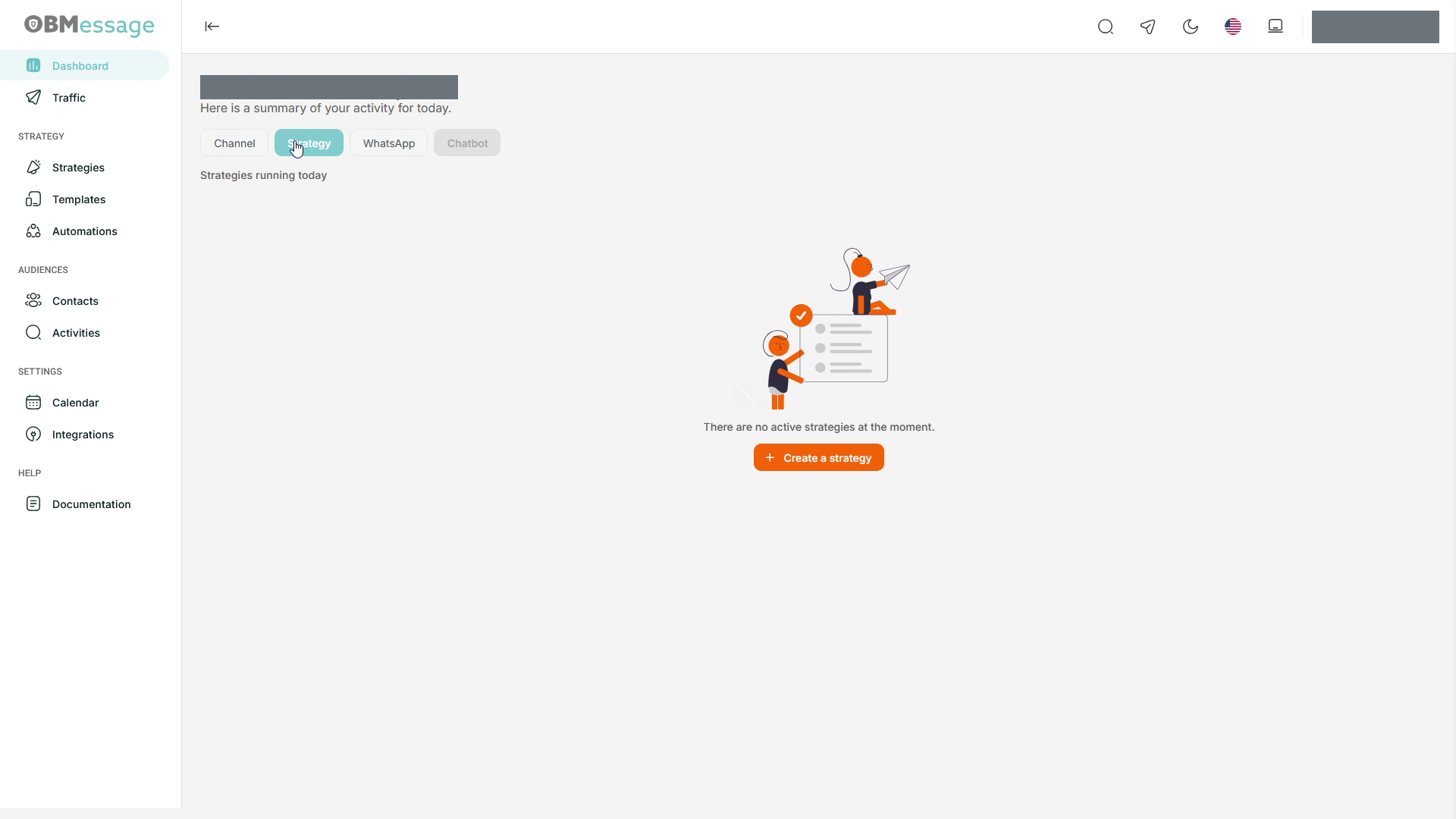
Select Strategy to open the view of strategies running today. When no strategies are active, an empty state and the Create a strategy button are displayed.
See Strategies and the creation wizard.
WhatsApp
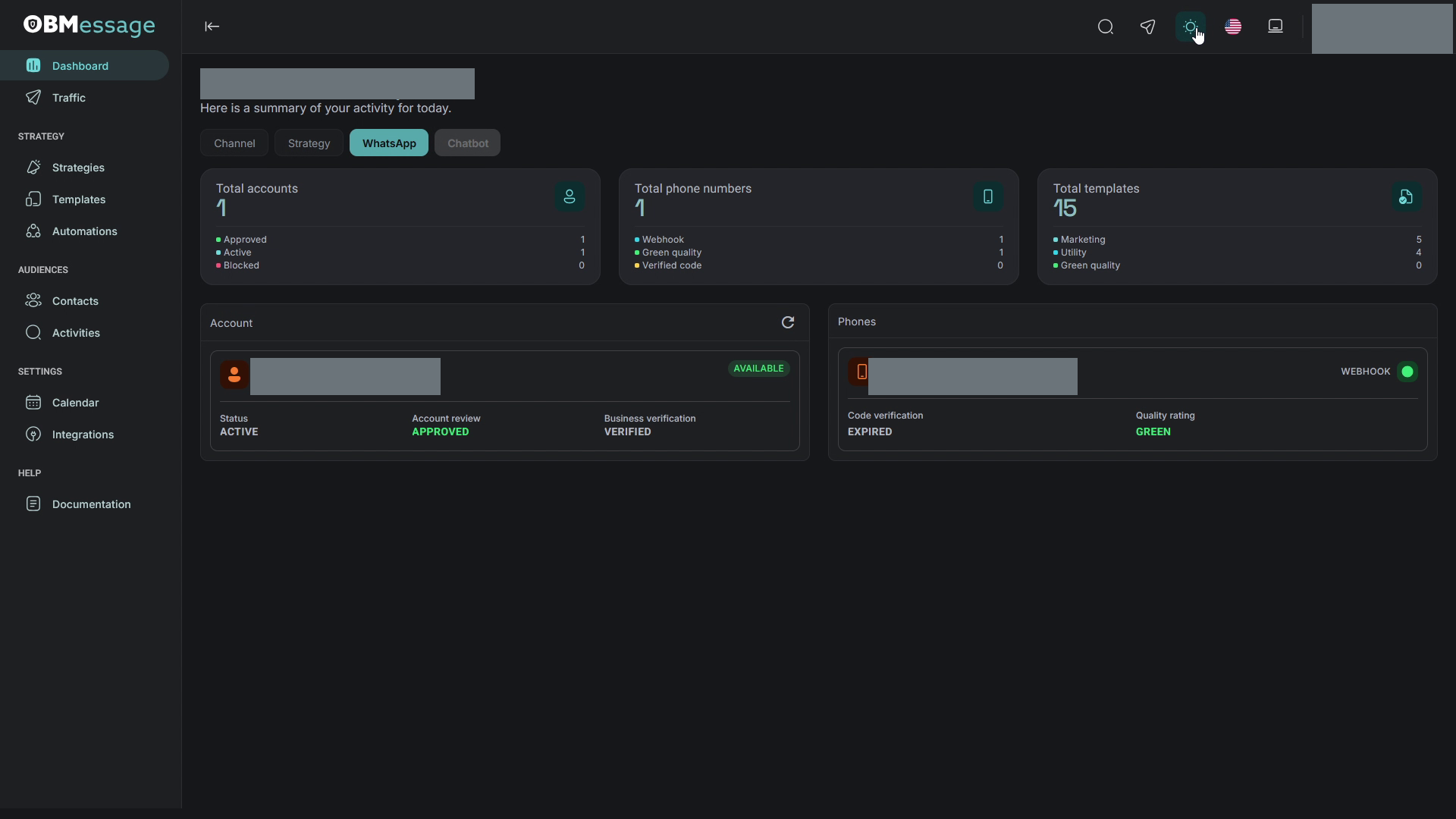
The WhatsApp tab displays account, phone number, and template totals, followed by Account and Phones sections.
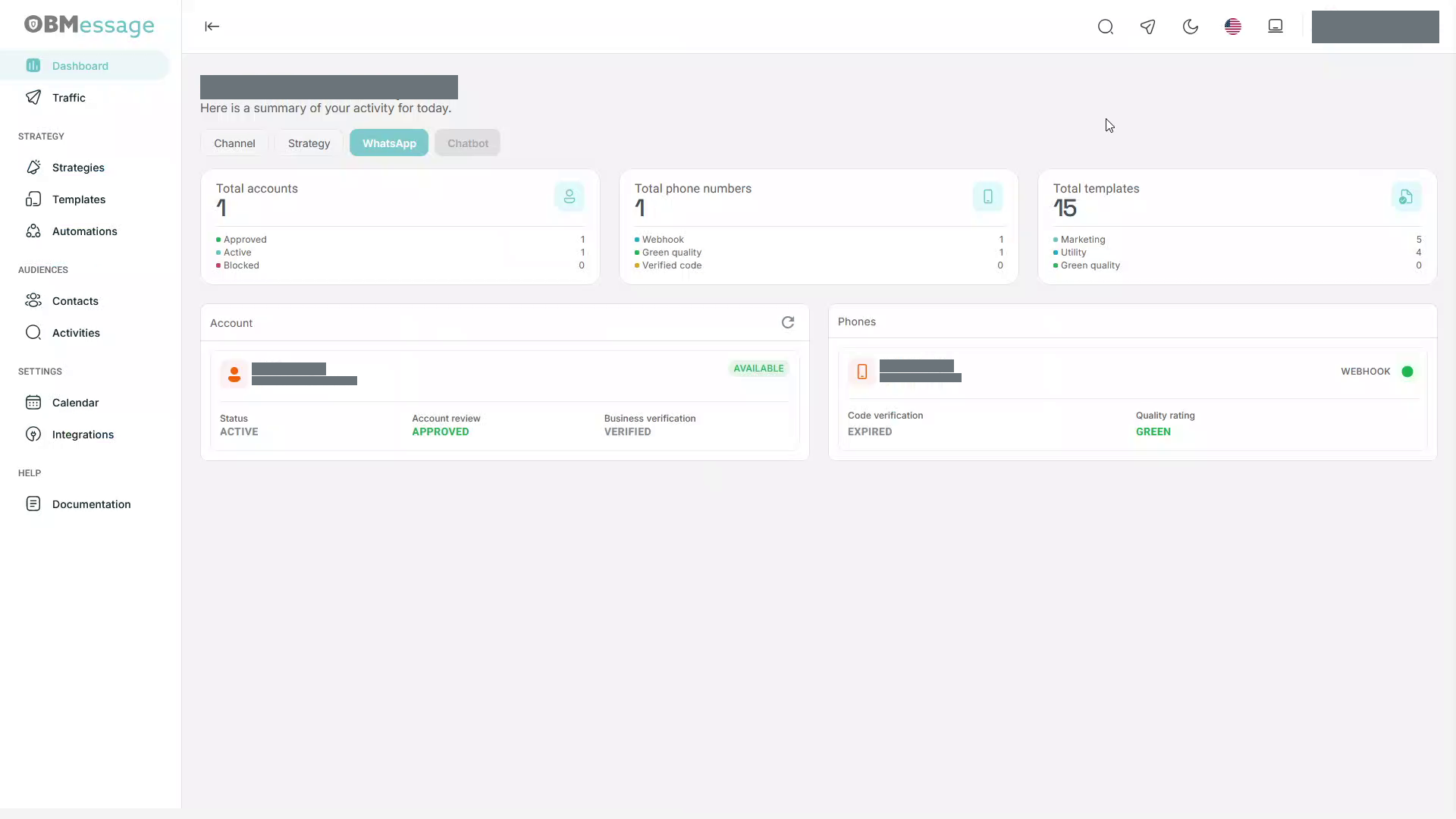
Account shows status, account review, and business verification. Phones shows webhook, code verification, and quality indicators. Status labels remain as displayed by the interface, for example ACTIVE, APPROVED, VERIFIED, EXPIRED, and GREEN.
Header controls
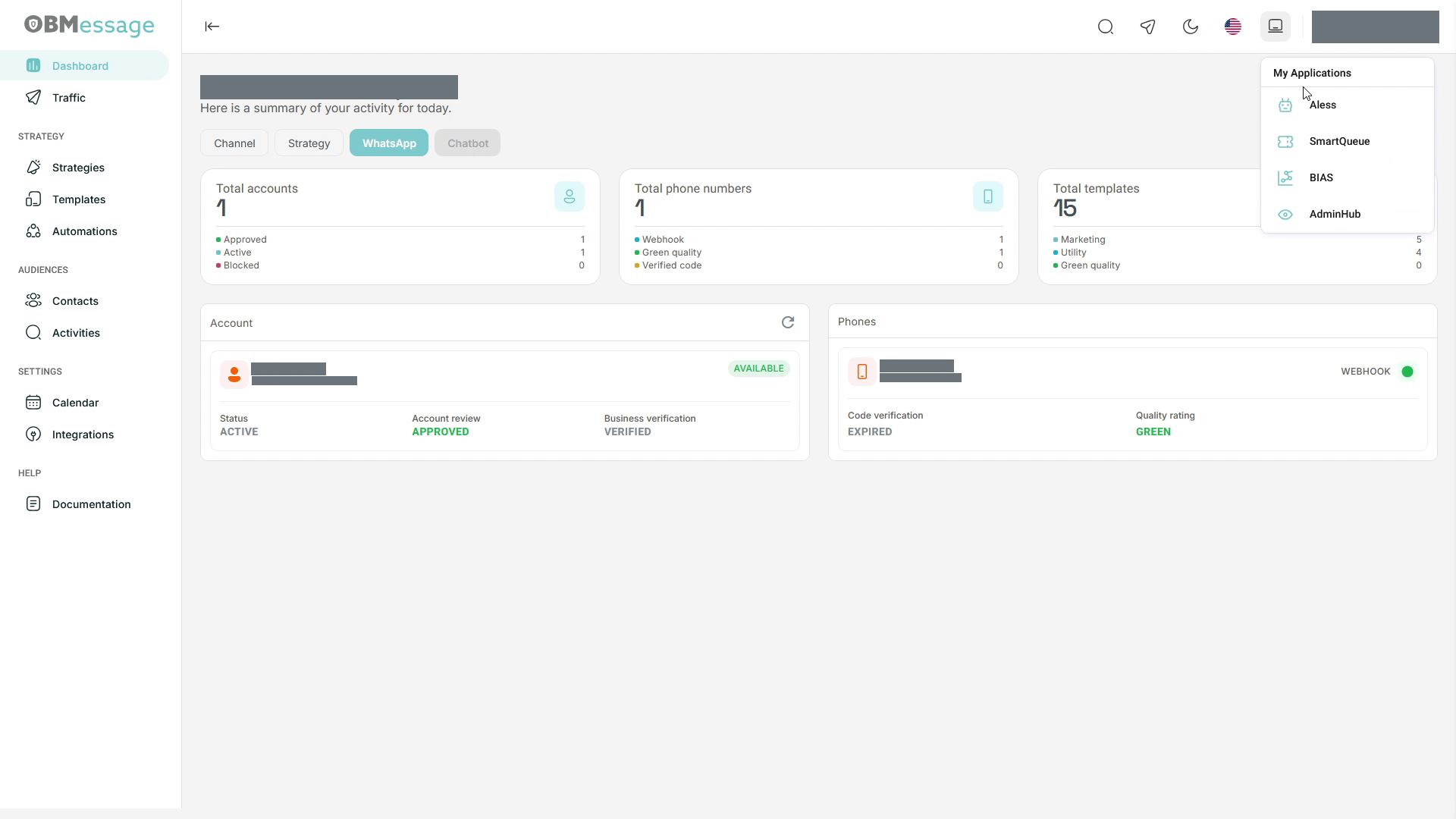
The theme control switches between light and dark appearance. My Applications opens entries for Aless, SmartQueue, BIAS, and AdminHub. Select the application you need. The header also provides Quick query and Service test.