WhatsApp template
A WhatsApp template defines the structured content used to start conversations. Publication and final sending availability are subject to Meta validation.
Before you begin
Define the message purpose, category, language, and required variables. Also prepare a sample image, video, or document when using media content.
Create the template
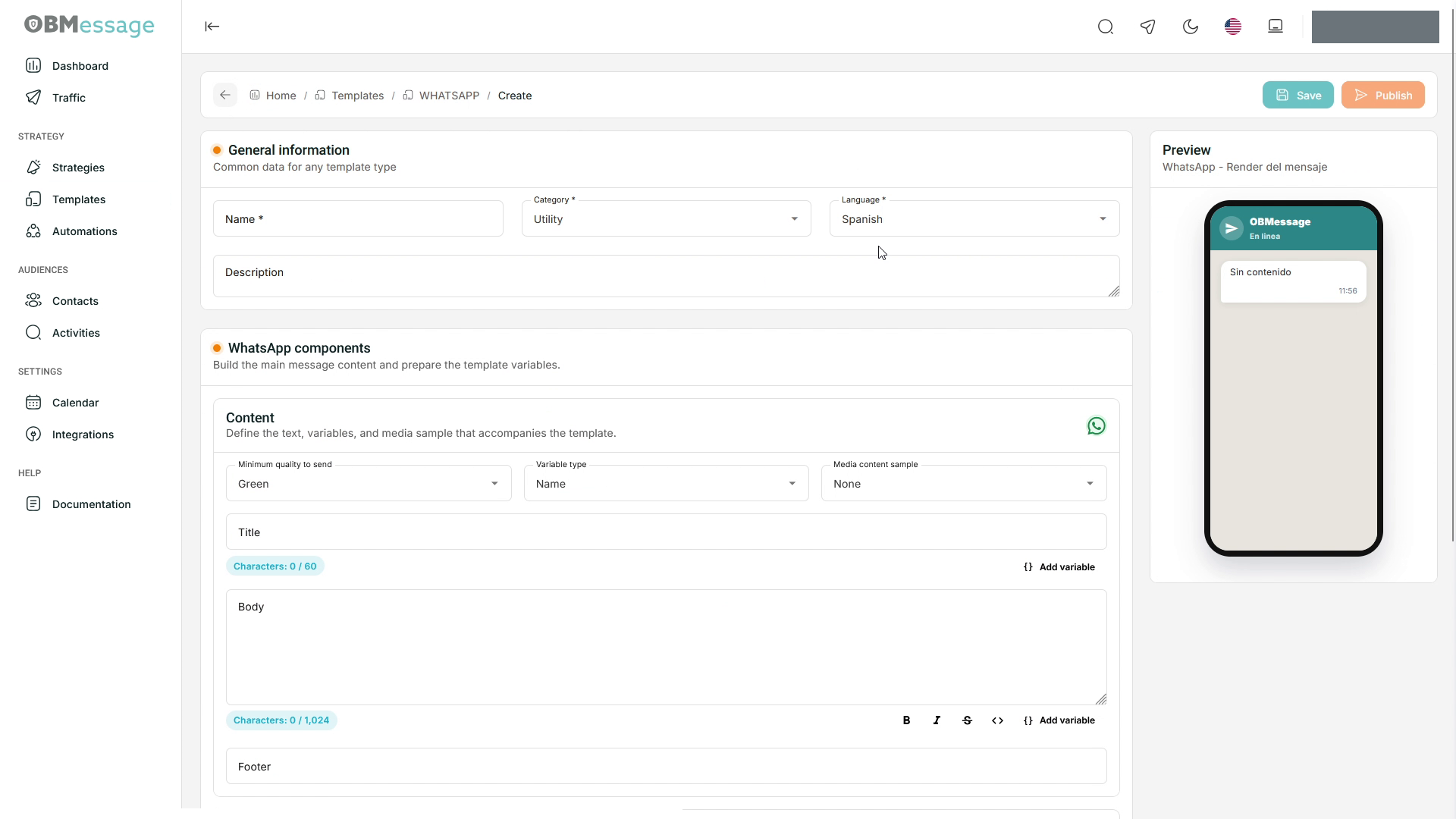
- Open Templates, select WhatsApp, and then select Create template.
- Complete Name, Category, Language, and Description.
- Under WhatsApp components → Content, configure Minimum quality to send and Variable type.
- Complete Title, Body, and, when needed, Footer.
- Use Add variable to insert personalized data and provide a Mock value under Dynamic mapping.
- Add the required buttons and complete their mandatory fields.
- Review the result in the message preview.
- Select Save to keep your work or Publish to start the publication process.
Message components
- Title or header: introductory message content. Depending on the configuration, it can use text or a media sample such as an image, video, or document.
- Body: the main text received by the recipient.
- Footer: supporting text displayed at the end of the message.
- Buttons: actions that open a link, submit a reply, or run another option supported by WhatsApp.
Title and Body include counters. The interface shows references of 60 characters for the title and 1,024 for the body; resolve any validation before publishing.
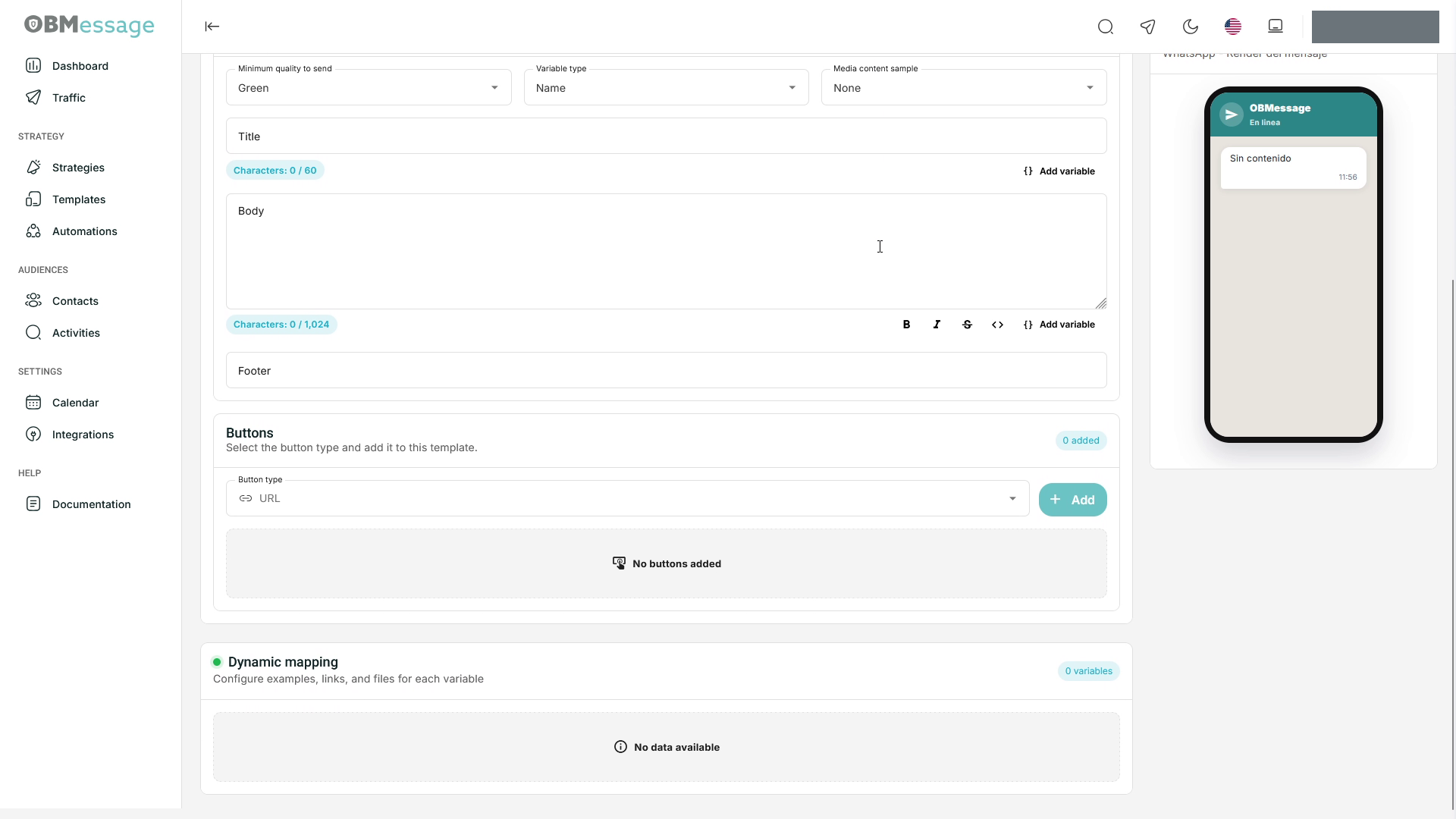
Variables and dynamic mapping
Variables represent data that changes for each recipient, such as {{first_name}}. Dynamic mapping requests an example value so the preview can display the variable and the template can pass validation.
Use descriptive names
For new templates, use clear variable names instead of inherited numeric references. This makes mapping and content maintenance easier.
If an example is missing, the form requests a value before the template can be completed.
Buttons
The selector can include URL, Quick reply, Phone, Voice call, Copy code, Flow, and OTP, depending on the category and the features enabled by Meta.
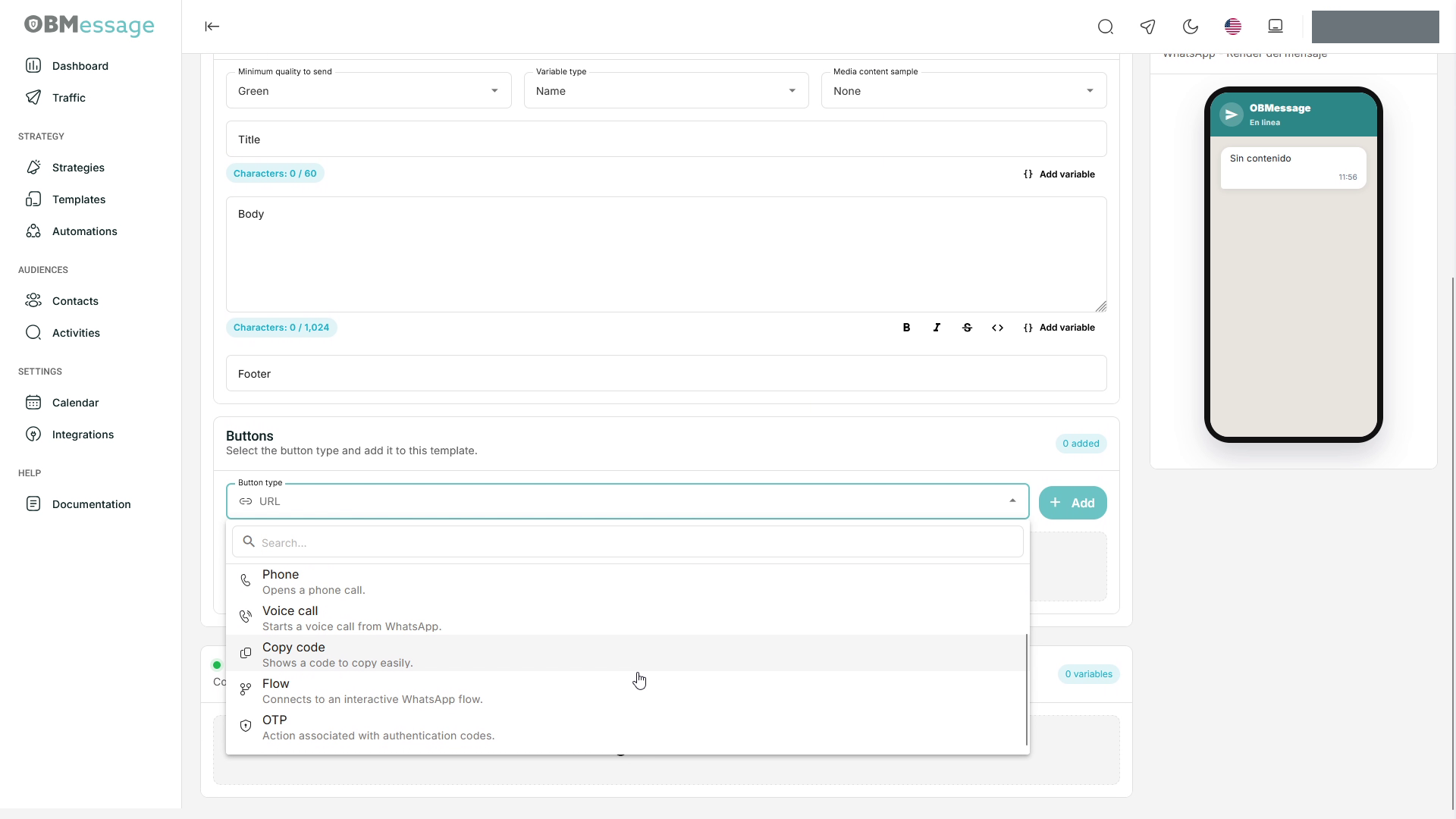
To add one, select its type, complete its details, and select Add. For a Quick reply:
- Quick reply text is the label shown to the recipient.
- Reply payload is the value received by the flow when the recipient selects the button.
The payload is required; the form displays a validation message when it is empty.
Verify the result
After publishing, return to the template list and check both Status and Sending availability. Published alone does not guarantee that the template is ready to send.