Service test
Use Service test to prepare a Voice, SMS, Email, or WhatsApp test, or to request a document through OPG, the document-generation service.
Before you begin
- Have a test phone number or email address where you can check the result.
- Prepare the content and, if using a template, identify the one for the selected channel.
- Prepare values for any variables required by the template.
Send test sends a test to the specified recipient. Check their details before selecting it.
Open the tool
- Select the paper-plane icon in the top bar.
- In Service test, select Voice, SMS, Email, WhatsApp, or Documents.
- Complete the channel details using the corresponding section below.
Bold labels match the interface controls, which use a mix of English and Spanish.
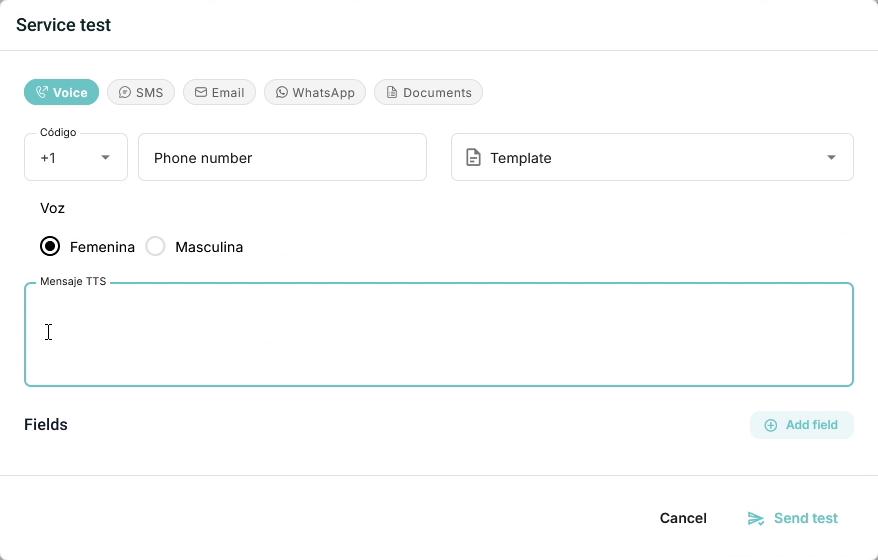
Voice
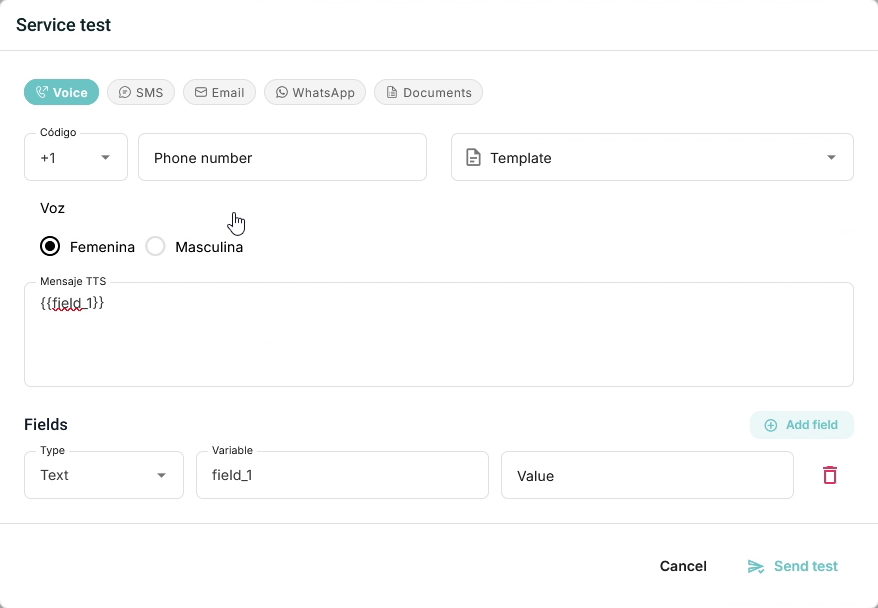
- Enter the country code in Código and the test number in Phone number.
- Under Template, select the template you will use, if applicable.
- Under Voz, select Femenina (female) or Masculina (male).
- Enter or review Mensaje TTS, the text that will be converted to speech.
- If the text contains variables, complete the additional fields.
- Continue to Send and check the test.
SMS
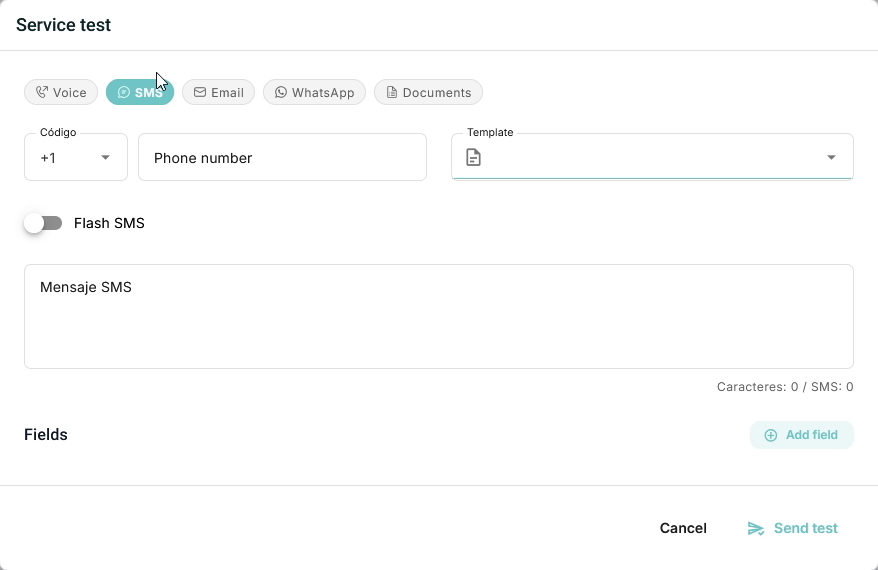
- Complete Código and Phone number with the country code and test number.
- Select Template if you will use a template.
- Enter or review Mensaje SMS, the message text.
- Configure Flash SMS if you need to test that mode.
- Complete the additional fields when the content uses variables.
- Continue to Send and check the test.
Email
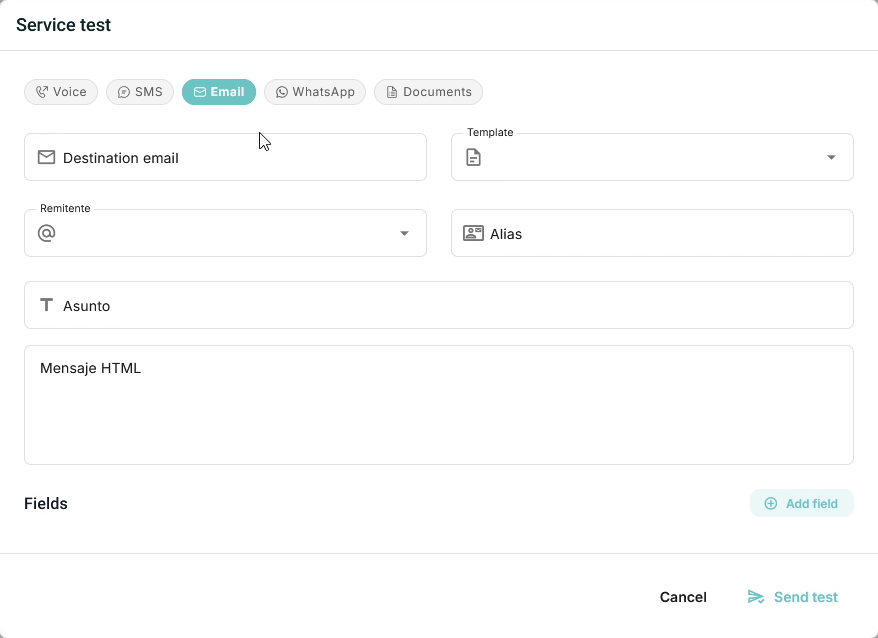
- Enter the test email address in Destination email.
- Select Template if you will use a template.
-
Review the message details:
Field What to provide Remitente Address from which the email will be sent. Alias Name identifying the sender. Asunto Email subject. Mensaje HTML Email content in HTML format. -
Complete the additional fields if the content uses variables.
- Continue to Send and check the test.
WhatsApp
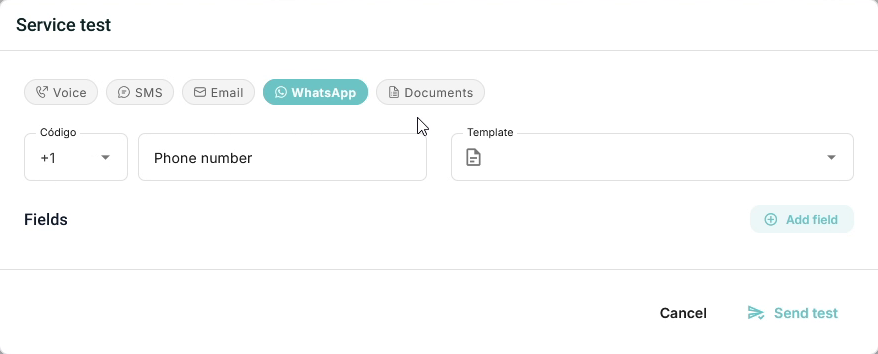
- Complete Código and Phone number with the country code and test number.
- Select the template under Template. Check its sending availability before using it.
- Complete Fields with the values required by the template variables. See Additional fields.
- Continue to Send and check the test.
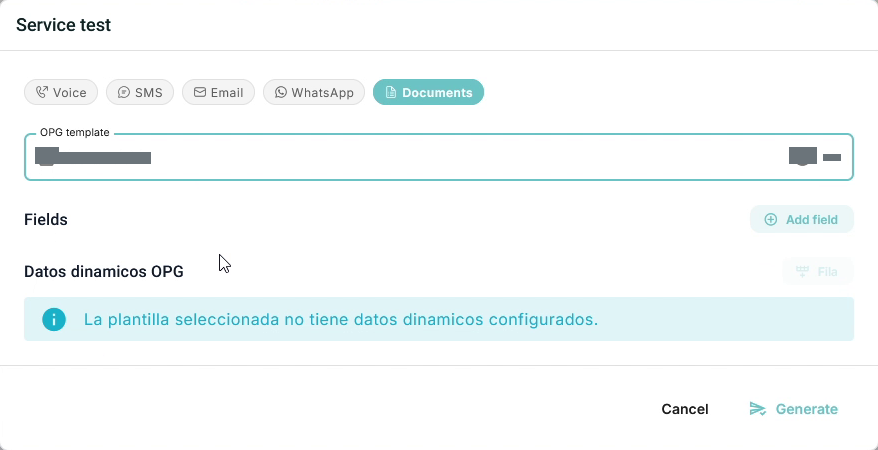
Documents
- Select Documents.
- Choose a template under OPG template.
- Review Fields and Datos dinámicos OPG (OPG dynamic data). Complete the data requested by the template.
- If the template reports that no dynamic data is configured, you do not need to enter values in that section.
- Select Generate to request generation.
- Review the application response and resolve any validation messages. If a document is offered, open it and check its contents.
This tab uses Generate, not Send test. For configuration details, see Document templates.
Additional fields
Additional fields provide values for variables used in the content.
- Select Add field to add a row.
-
Complete the row fields:
Field What to provide Type Data type that matches the value. Variable Name of the variable used in the content. Value Value to use for the test. -
Repeat for each required variable. Use the delete icon to remove a row that does not apply.
For example, for {{field_1}} in a TTS message, use field_1 under Variable and enter its test value under Value.
Send and check the test
For Voice, SMS, Email, and WhatsApp:
- Check the recipient, template or content, and variable values.
- Select Send test.
- Review the application response. If it requests a field correction, resolve it before repeating the action.
- Check receipt on the test phone or email account and review the status using Quick query or Activities.
Sending alone does not confirm delivery to the recipient. Select Cancel to leave without requesting delivery.