SMS template
An SMS template stores content that can be reused in text-message deliveries.
Before you begin
Prepare the message, category, language, and example values for any variables.
Create the template
- Open Templates, select SMS, and then select Create template.
- Complete Name, Category, Language, and Description.
- Enter the message under Content.
- To personalize the message, select Add variable and provide example values under Dynamic mapping.
- If the message contains a link, use the URL shortener available in the editor to reduce its length.
- Enable Interactive only when the template is part of a flow that supports interaction.
- Check the preview and the Characters and SMS count indicators.
- Select Save to keep your work or Publish when the content is ready.
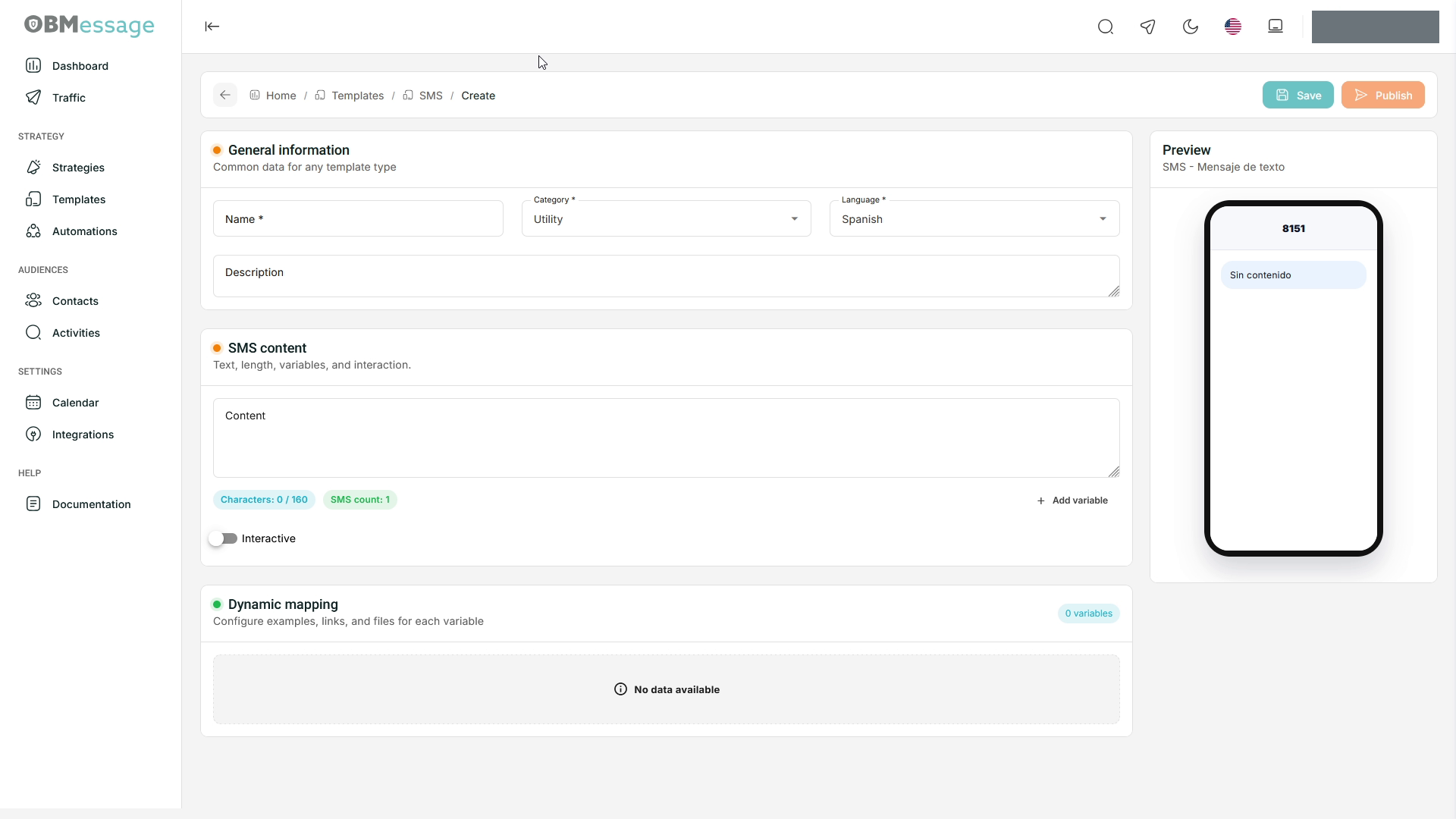
Main fields
- Name: identifies the template.
- Content: contains the message received by the recipient.
- Category: classifies the template for organization and filtering.
- Description: provides an internal reference for the message purpose.
- Dynamic mapping: provides example values for checking how variables will appear.
Message length
The counters update as you type. The final SMS count can vary based on message length and character encoding; check SMS count before publishing.
Check the result
When complete, the template appears under the SMS tab with the status produced by the selected action.
Reopen the template to verify the saved content. To review a test before using it in a strategy, see Service test.