Voice template
A voice template combines text-to-speech (TTS) messages and WAV audio files. You can use both block types in the same composition.
Before you begin
Prepare the script, category, and language for the template. If you plan to use recorded audio, have the corresponding WAV file ready.
Create the template
- Open Templates, select Voice, and then select Create template.
- Complete Name, Category, Language, and Description.
- Under TTS settings, select Language, Voice type, Gender, and Voice name. Adjust Speed, Pitch, and Volume when needed.
- Under Messages, add a TTS block to convert text to audio or a WAV block to use a recording.
- Enter the content for each TTS block or upload the audio requested by the WAV block.
- If the message contains variables, provide their example values under Dynamic mapping.
- Use Play test in the TTS audio preview panel to review the composition.
- Select Save to keep your work or Publish when the template is complete.
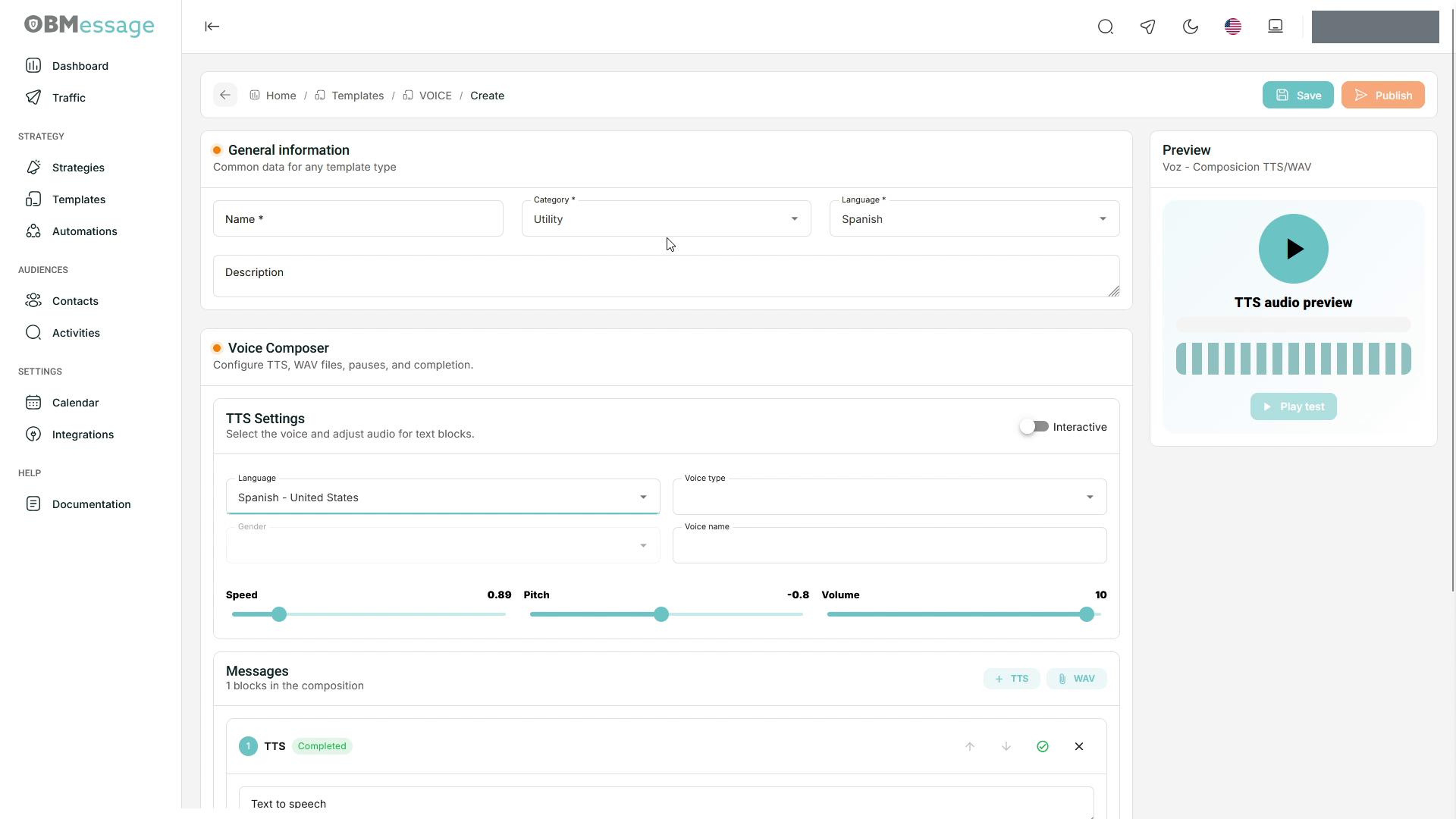
Composition options
- TTS: generates audio from the text entered under Text to speech.
- WAV: adds a previously recorded audio file.
- Interactive: enable this only when the voice flow requires recipient interaction.
- Dynamic mapping: assigns example values to variables used in the message.
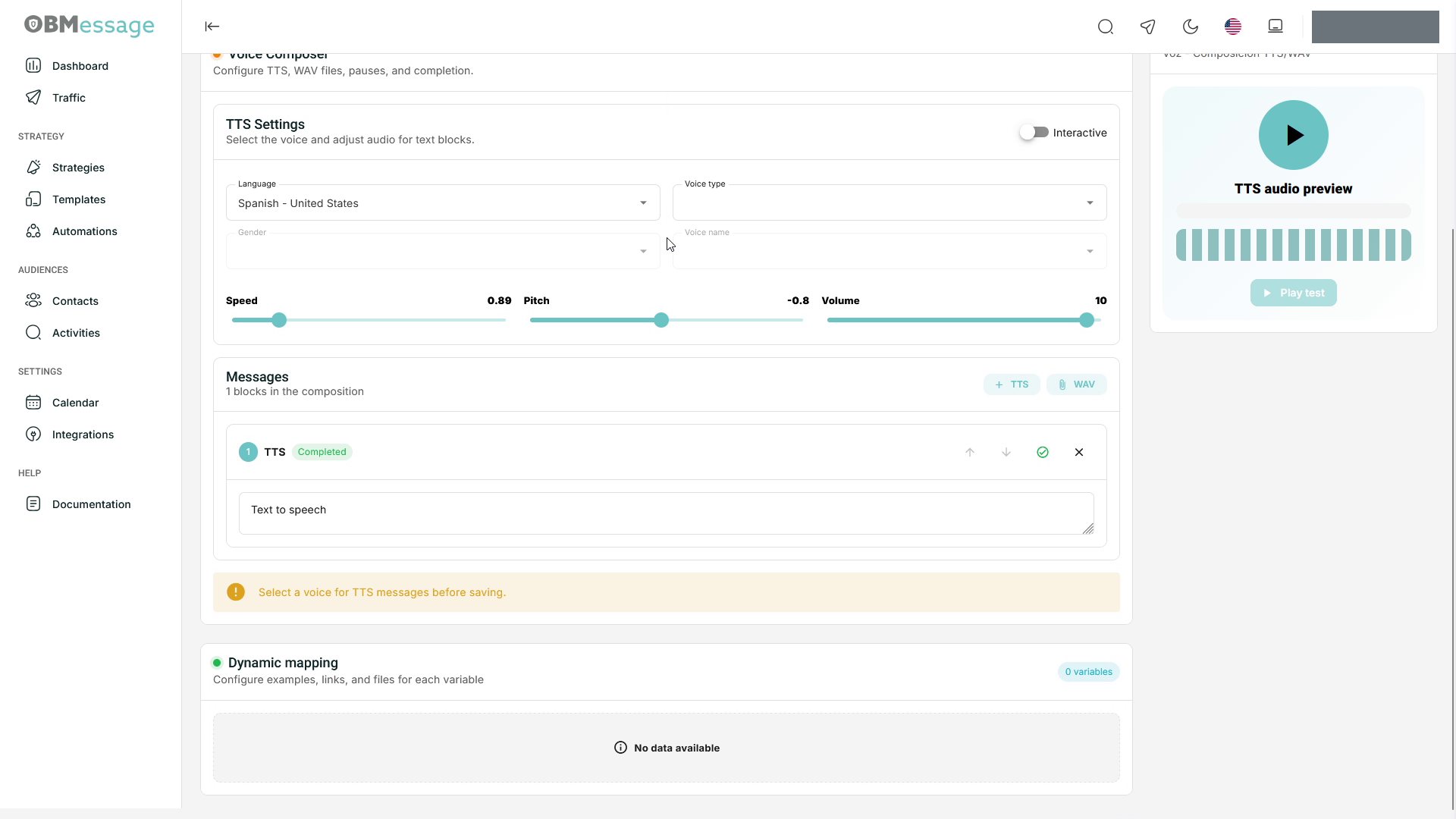
Check the result
When complete, the template appears under the Voice tab with the status produced by the selected action.
Reopen the template to verify the saved content. To review a test before using it in a strategy, see Service test.